See what your PC is really doing
TMOP is a free task manager and system monitor for Windows. Processor, memory, disk, network, graphics card, running programs and much more, live. No installer needed.
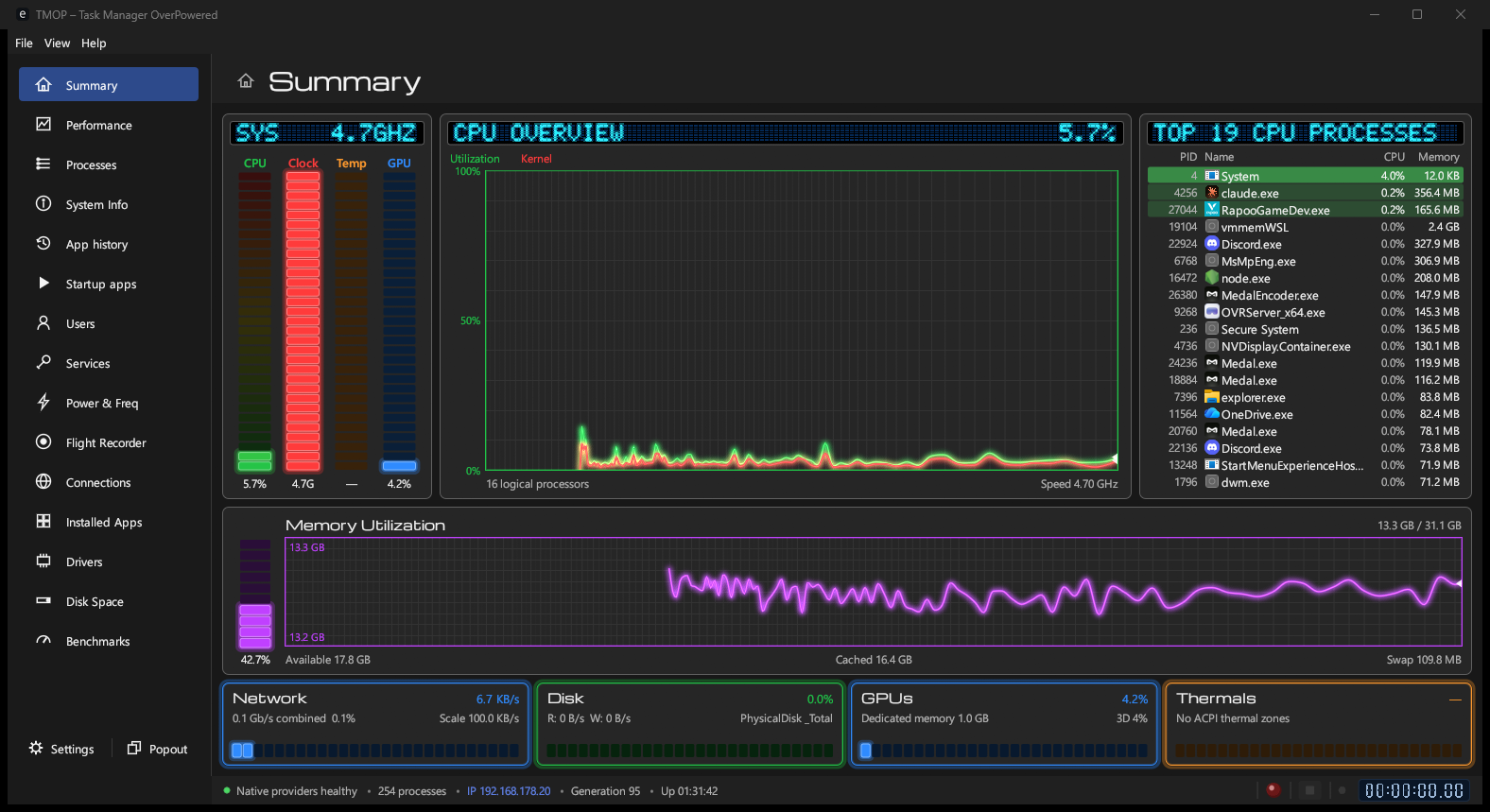
Up and running in a minute
There's nothing to set up. TMOP is a single program file you start with a double-click.
Download
Click Download for Windows above. The right version for your PC is picked for you.
Open it
Double-click the downloaded file in your browser's download list or your Downloads folder.
Keep it handy
Move the file somewhere you like, such as your desktop, or pin TMOP to the taskbar while it runs.
Or install with one command
Open PowerShell (right-click Start → Terminal) and paste:
PS> irm https://tekikaito.github.io/tmop/install.ps1 | iex
- Adds TMOP to the Start menu and starts it
- No "Windows protected your PC" window, no admin rights
- Run it again any time to update
- Remove it in Settings → Apps like any other app
Replace Windows Task Manager
In TMOP's Settings, under Task Manager, turn on Open TMOP instead of Windows Task Manager.
From then on Ctrl + Shift + Esc, Task Manager in the taskbar menu and taskmgr all open TMOP. The real Task Manager stays one click away under File.
Turn this off again before you move or delete TMOP.exe.
What you can do with it
Everything Task Manager does, and a lot it doesn't.
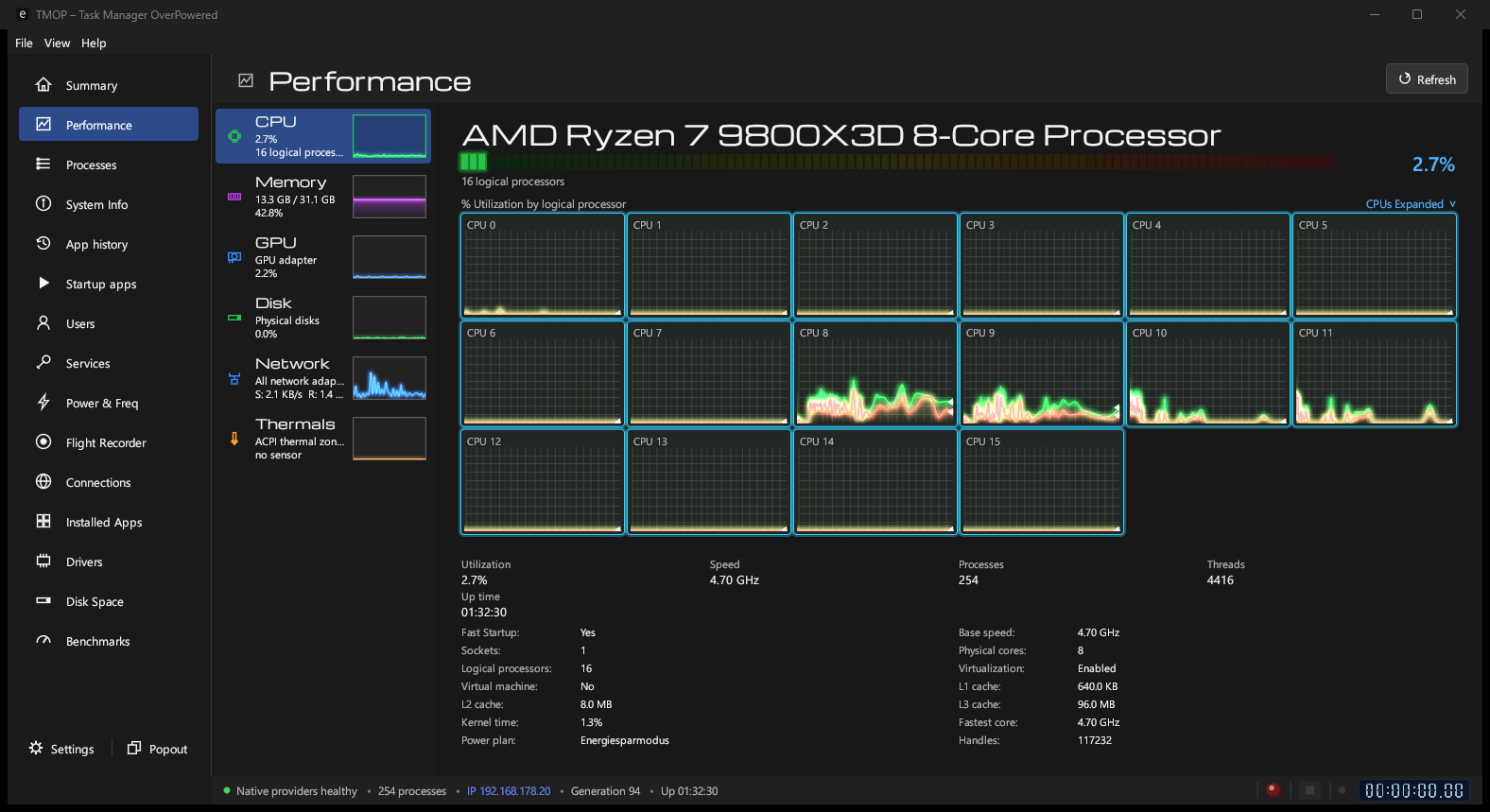
Watch performance live
Graphs for every processor core, memory, disks, network and graphics card.
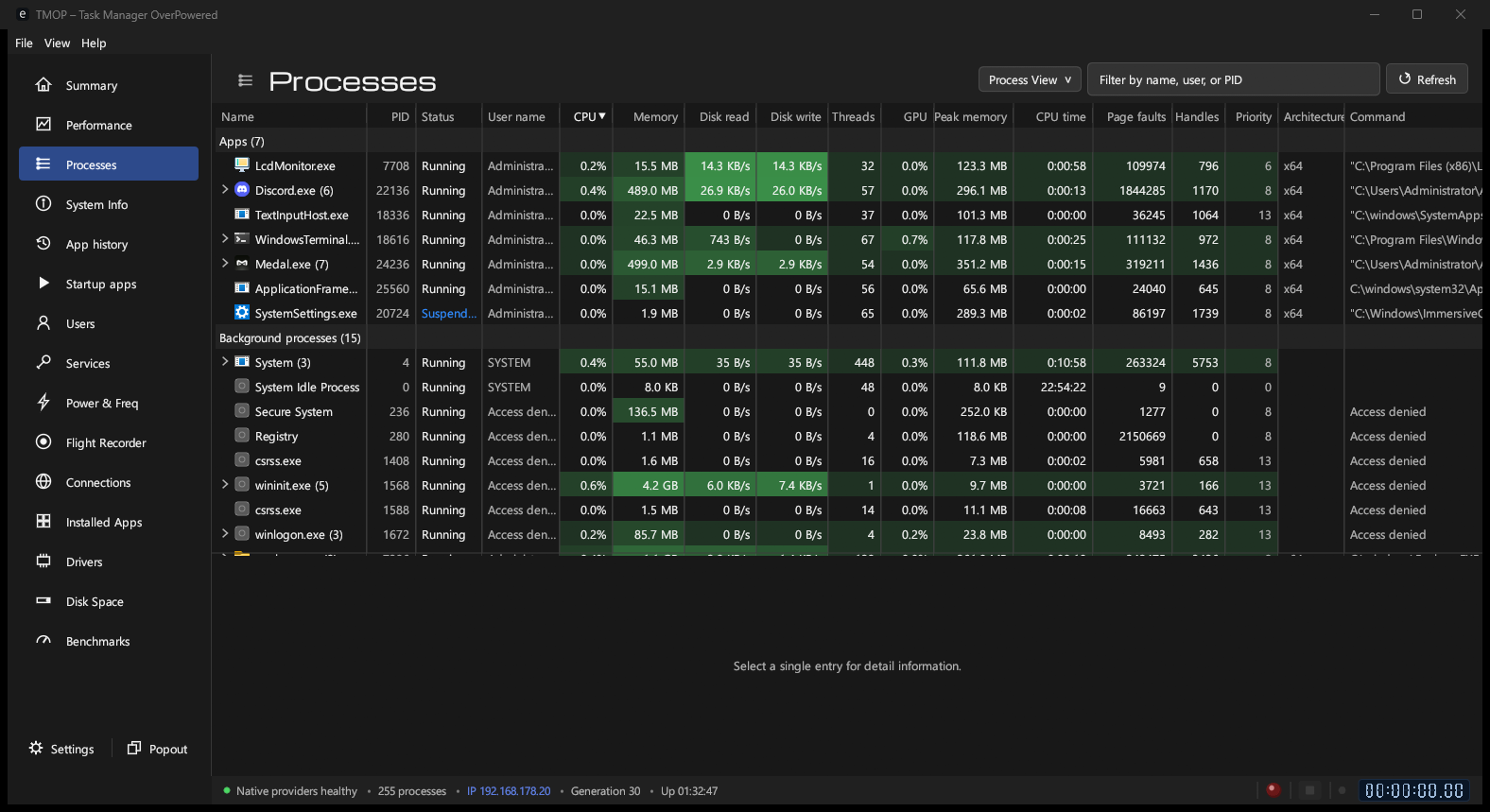
Find and close programs
See what uses your PC. Right-click a program that hangs and choose End task.
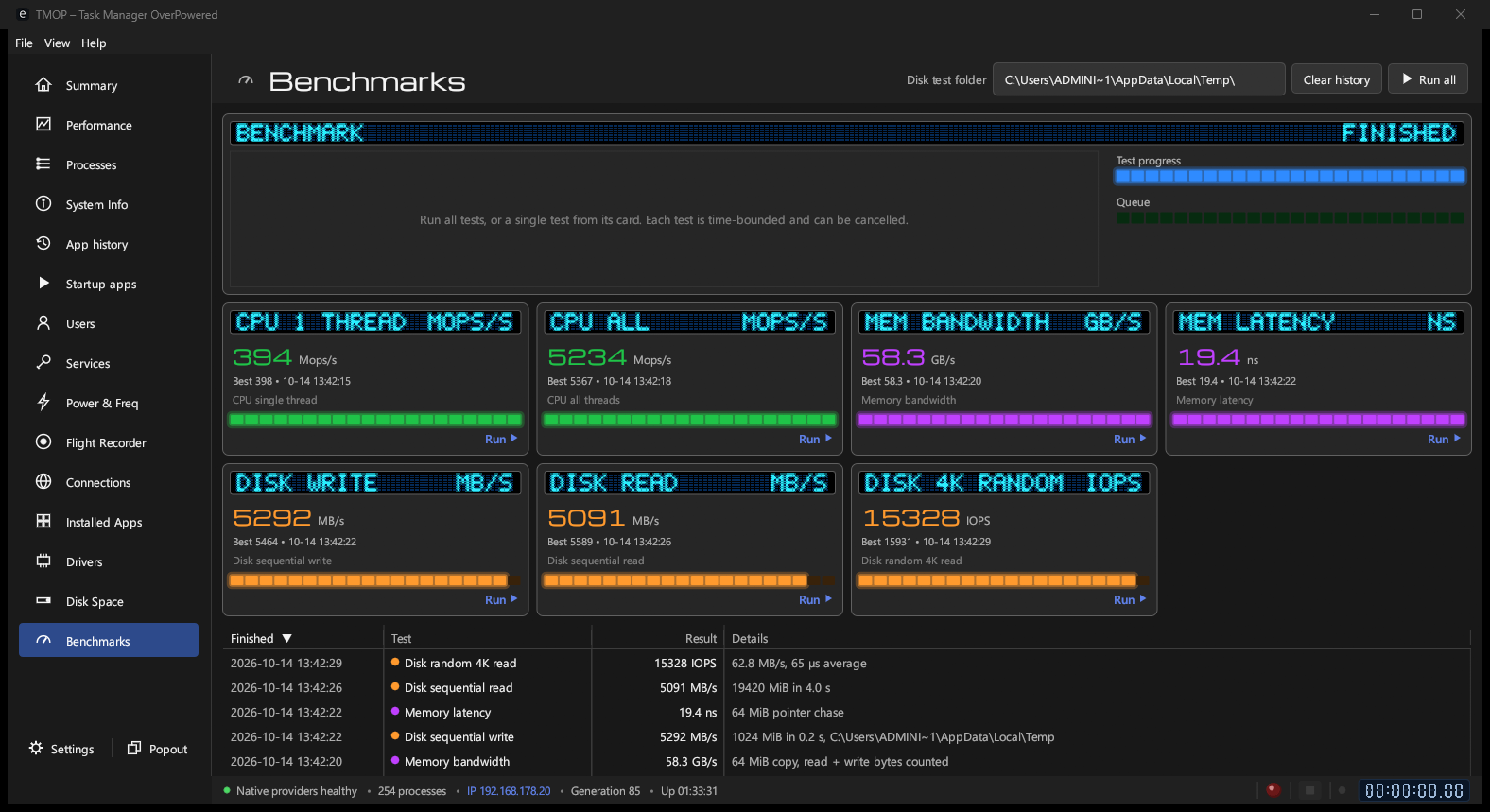
Test how fast your PC is
Built-in speed tests for processor, memory and disk.
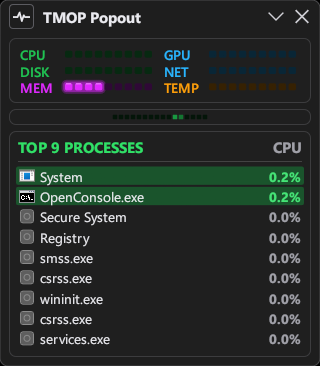
Keep a monitor on your desktop
The Popout button opens a small window that stays on top while you work or play.
- Find what fills your disk
- Startup apps and services
- Installed apps and drivers
- Network connections
- Flight recorder for later
- Manage Docker containers
Help
Short answers to the usual questions.
Which download do I need?
Almost every Windows PC needs x64, and that's what the button gives you. Only PCs with an ARM processor, such as Snapdragon laptops, need ARM64. The page tries to detect this; if you're not sure, take x64.
All files are also on the GitHub release page.
How do I update TMOP?
If you used the PowerShell command, run it again. Otherwise download the newest version here and replace your old TMOP.exe with it. Your settings are kept either way.
How do I remove TMOP?
Installed with the PowerShell command: remove it in Settings → Apps → Installed apps. It also gives Ctrl+Shift+Esc back to Windows Task Manager.
Downloaded by hand: if TMOP opens instead of Task Manager, turn that off in TMOP's Settings first. Then delete TMOP.exe.
To also remove your settings, delete the folder %LOCALAPPDATA%\TMOP (paste it into File Explorer's address bar).
Ctrl+Shift+Esc opens nothing after I deleted TMOP
Windows still points Task Manager at the deleted file. Open Command Prompt as administrator and run:
reg delete "HKLM\SOFTWARE\Microsoft\Windows NT\CurrentVersion\Image File Execution Options\taskmgr.exe" /v Debugger /f
Does TMOP send my data anywhere?
No. Its only internet requests go to GitHub: downloading TMOP's own Docker engine when you set it up, and checking for a newer engine release (you can switch that off on the Docker page's Engine tab).
Is the download safe?
TMOP is open source, and every download is built by GitHub Actions straight from the public code. Each file on the release page comes with a .sha256 checksum; the PowerShell command checks it for you.